
When you need to build or rebuild a whole batch of Cloud VPS instances (balancers, minions, databases, operations hosts), installing the operating system by hand on each one is slow and hard to keep consistent. The modern approach is to create every server from the same cloud image and let cloud-init handle the first-boot work: setting the hostname, growing the partition to the real disk size, loading SSH keys. This guide explains how a cloud image differs from a manual install, how to check what cloud-init did on a server, which parts still have to be standardized with scripts, a sample cloud-config for a minion, and a trick for finding the real date a server was built.
1. How a cloud image differs from a manual OS install
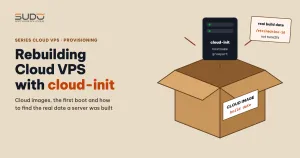
A manual install means booting from an ISO file, choosing partitions, choosing packages, creating users and waiting for the installer to finish. Each server takes tens of minutes, and two servers installed by two people are rarely identical. A cloud image is a disk with a minimal operating system already installed; the cloud platform simply copies that disk for the new VPS and boots it. Debian publishes these images in the official Debian cloud image repository, and many providers use them as templates.
| Manual install from ISO | Cloud image + cloud-init | |
|---|---|---|
| Time to a usable server | Tens of minutes, with someone clicking through | SSH works a few seconds after boot |
| Consistency | Depends on who installed it | Every server is identical down to each package |
| Hostname, IP, SSH key | Entered during installation | cloud-init reads them from the platform's metadata |
| Partition size | Chosen during installation | The image is small; cloud-init grows it to fill the disk |
The only problem with a cloud image: an identical disk cannot contain each server's own hostname or SSH key. That "personalization" is cloud-init's job.
2. What cloud-init is and when it runs
cloud-init is a toolset included in almost every Linux cloud image. On first boot, it looks for a datasource (the metadata source provided by the platform), reads the server's details and runs a chain of modules in four stages:
- init-local: before networking is up, it identifies the datasource and configures the network.
- init: with networking up, it runs base modules such as setting the hostname,
growpart,resizefs, creating users and loading SSH keys. - config: configuration modules such as locale, timezone, apt, ntp and
runcmd. - final: installs packages, runs user scripts and writes the
boot-finishedmarker file.
Each module has its own frequency: per-instance (runs once per server), per-boot or always. Users control cloud-init through user-data, usually a #cloud-config YAML file passed in when the server is created. The full list of modules and syntax is in the official cloud-init documentation.
3. Checking what cloud-init did on a server
Instead of guessing, read it straight from the newly created server:
$ cloud-init --version
$ cloud-init status --long           # expected: status: done

# key milestones in the log
$ grep -E "running 'init-local'|Setting the hostname|resized" /var/log/cloud-init.log
... Cloud-init v. 22.4.2 running 'init-local' at ... Up 5.33 seconds.
... cc_set_hostname.py[DEBUG]: Setting the hostname to app-php82-1 (app-php82-1)
... cc_growpart.py[INFO]: '/' resized: changed (/dev/vda, 1) ...

# data cloud-init received
$ ls -l /var/lib/cloud/instance/
$ cat /var/lib/cloud/instance/user-data.txt
Usually, only a few seconds after the server powers on, cloud-init has set the hostname and grown the root partition to fill the disk (growpart followed by resize2fs). If user-data.txt is empty, no cloud-config was passed in: everything cloud-init did came from the image's default configuration in /etc/cloud/cloud.cfg plus the platform's metadata. Read that file carefully; for example, the line disable_root: false means the image allows SSH as root from the start, which is convenient but should be tightened once the server is up.
4. What cloud-init does not do: standardizing a new server
A server freshly booted from a cloud image is just a bare Debian. To become a minion or a balancer, it needs a list of extra tasks. The dpkg log shows the order in which things were installed after the first boot:
$ zgrep -h " install " /var/log/dpkg.log* | sort | awk '{print $1, $2, $4}'A minimal standardization list for a new Cloud VPS:
| Task | Applies to | Why |
|---|---|---|
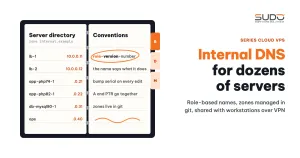
| Set a hostname that follows the convention and register it in internal DNS | Every server | Scripts and configs address servers by name (see the internal DNS article) |
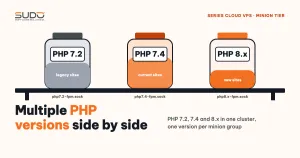
| The sury PHP repository and PHP-FPM in the minion group's version | Minion | Debian 12 only ships PHP 8.2 (see running multiple PHP versions side by side) |
Web server user and a standard site directory (for example /var/www) | Minion | Every site and every script share the same ownership and path convention |
| nginx, supervisor (including per-site config files) | Minion | Web server and per-site queue workers |
| nginx, certbot, security snippets | Balancer | Reverse proxy and SSL |
A small swapfile and low vm.swappiness | Low-RAM servers | A buffer before the OOM killer steps in |
| node_exporter or a monitoring agent | Every server | Brings the server's CPU, RAM and disk into monitoring |
| ufw, the operations system's SSH key, root password login disabled | Every server | Only the necessary ports are open, and automation scripts can SSH in |
The fixed part of this list belongs in cloud-config so that a new server completes itself on first boot, instead of someone running scripts by hand once it is up. An illustrative example for a minion:
#cloud-config
hostname: app-php82-1
package_update: true
packages: [nginx, supervisor, git, zip, unzip, ufw, ca-certificates, curl]
swap:
  filename: /swapfile
  size: 1G
write_files:
  - path: /etc/sysctl.d/90-swap.conf
    content: "vm.swappiness=10\n"
runcmd:
  - curl -fsSL https://packages.sury.org/php/apt.gpg -o /etc/apt/keyrings/php.gpg
  - echo "deb [signed-by=/etc/apt/keyrings/php.gpg] https://packages.sury.org/php/ bookworm main" > /etc/apt/sources.list.d/php.list
  - apt-get update && apt-get install -y php8.2-fpm php8.2-cli php8.2-mysql php8.2-mbstring php8.2-xml
  - mkdir -p /var/www && chown www-data:www-data /var/www
  - sysctl --system
Before trusting a user-data file, validate its syntax with cloud-init schema --config-file user-data.yaml, and after the first boot, read /var/log/cloud-init-output.log to see the output of every command in runcmd.
5. Investigation tip: when was this server really built?
When rebuilding servers in bulk, the question "when was this server built, before or after that change?" comes up constantly. The first method everyone thinks of is the wrong one:
$ tune2fs -l /dev/vda1 | grep created
Filesystem created:       <image build date>
On every server created from the same cloud image, this value is identical, no matter when the server was built. It is the date the filesystem was created while building the cloud image, not the date the VPS was created; the /lost+found directory carries the same date. The real build date has to be found in files that cloud-init or systemd wrote during the first boot:
# 1. The first boot in the cloud-init log (if the log has not been rotated away)
zcat -f /var/log/cloud-init.log* | grep -m1 "running 'init-local'"

# 2. machine-id is generated on first boot
stat -c '%y' /etc/machine-id

# 3. The instances directory: each new instance-id is one directory
ls -l --time-style=+%F /var/lib/cloud/instances/

# 4. The most recent hostname change
stat -c '%y' /etc/hostname
zcat -f /var/log/cloud-init.log* | grep "Setting the hostname"

# 5. The first extra package installed
zgrep -h " install " /var/log/dpkg.log* | sort | head -1
Only by cross-checking these sources do you get the right answer. Cross-checking is needed because cloud-init sets the hostname from the name in the platform's metadata on every boot. A server may first boot with a temporary name and only get its proper, convention-compliant name a few days later, or be renamed several times after a typo; the cloud-init log records every one of those changes. Therefore:
- the mtime of
/etc/hostnameis the date of the last rename, close to the date the server went into service under the naming convention; /etc/machine-id, the instances directory and the firstinit-localline are the server's real birth date;- the filesystem creation date only tells you when the image was built.
6. Common errors with cloud images and cloud-init
- The server is renamed but the hostname reverts after a reboot:
/etc/hostnamewas edited by hand while the platform's metadata still holds the old name. Rename it on the platform too, or setpreserve_hostname: trueif you want to manage it yourself. - You paid for a large disk but
dfshows only a few GB:growpartcould not run (thecloud-guest-utilspackage is missing, or the partition is not at the end of the disk). Check thecc_growpartline in the log. - runcmd failed but the server still reports "done": a failing command in
runcmddoes not block boot. Always readcloud-init-output.logandcloud-init status --long. - Re-running cloud-init on a live server:
cloud-init cleanfollowed by a reboot re-runs everyper-instancemodule, including creating users and overwriting files. Only do this on a test server. - An old template image: the image may have been built long ago, so a freshly booted server is already missing many patches. The first step is always
apt-get update && apt-get upgrade, or enablepackage_upgrade: truein cloud-config.
7. Checklist for building Cloud VPS with cloud-init
- Use an official image and record which image version serves as the template.
- Give the VPS its convention-compliant name at creation time, because cloud-init takes the hostname from it.
- The fixed part (repositories, packages, users, swap, sysctl) lives in user-data and has passed
cloud-init schema. - After the first boot:
cloud-init status --long, readcloud-init-output.log, checkdf -h. - Tighten SSH (
disable_root, key-only login), enable ufw, apply updates. - Register the server in internal DNS and monitoring before putting sites on it.
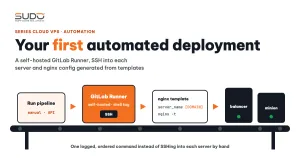
Cloud images and cloud-init solve the "blank server" part: within seconds you have a server you can SSH into, with the right hostname and a full-size disk. The "server in its proper role" part is still your responsibility: whatever is fixed goes into user-data, and whatever depends on the site is left to a pipeline like the one in the first automated deployment article.
Next article
Jenkins as the control plane for hundreds of websites. Once you have dozens of Cloud VPS instances, every task such as creating sites, deploying, backups and domain changes is brought together in one place.